
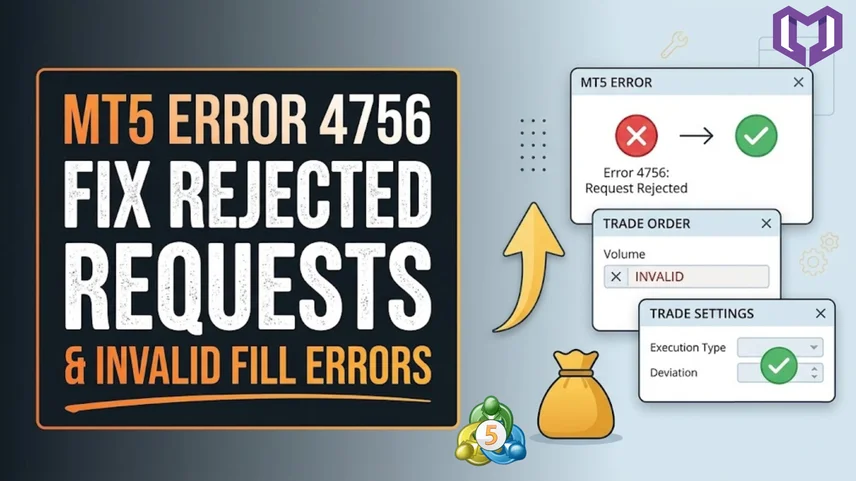
MetaTrader 5 (MT5) is one of the popular trading platforms for executing automatic trades. Many traders have encountered MT5 error 4756 while trying to trade automatically.
When you get your TradingView alert and your bridge receives the signal but instead of opening the order, MT5 gives you error 4756, don't panic, as it's a normal problem that is easy to fix.
In this tutorial, we will give you a detailed explanation of what MT5 Error 4756 is, its causes, and solutions to this error when using MetaConnector.
MT5 Error 4756 usually means that MetaTrader 5 failed to send an order to your broker, as the broker refused the order.
In many cases, the platform may display messages such as the following:
What you need to know is that Error 4756 may not be the true cause. This is just an indication that the trade request was rejected by the broker. The real reason will most likely be seen in the MT5 journal or the expert's log.
Before making any changes, open the Toolbox panel in MetaTrader 5 by pressing Ctrl + T.
Check both the Journal and Experts tabs.
These logs will show what exactly was the reason behind the rejection by the broker. Possible reasons can be wrong filling mode, wrong volume, wrong stop loss values, wrong price values, or wrong symbol.
Finding the exact message in the logs can significantly reduce troubleshooting time.
One of the most frequent reasons behind MT5 Error 4756 is an unsupported filling mode.
Every broker uses specific order execution rules. If your Expert Advisor (EA), trading bot, or automation bridge sends an order using a filling mode that the broker does not support, the broker will reject the trade.
How to Fix It
If you are using MetaConnector for TradingView automation, check the broker configuration settings and select the broker mode that matches your broker's execution model.
After saving the changes, resend the trade signal and verify whether the order executes successfully.
Another common reason for error 4756 is incorrect stop loss (SL) or Take Profit (TP) placement.
Many brokers enforce minimum distance requirements between the current market price and stop levels.
In case you use MetaConnector for TradingView automation, you should examine the settings of your broker and choose the mode of operation that corresponds to the model of execution by your broker.
After changing the settings, resend the signal and see whether the order executes correctly.
One more frequent cause of Error 4756 is the wrong setting of Stop Loss or Take Profit orders.
If your stop loss or take profit is too close to the market price, the broker may reject the order.
How to Fix Stop Level Issues
Review your broker's symbol specifications and identify the minimum stop distance.
Ensure that:
A quick test is to place a market order without any Stop Loss or Take Profit values. If the order executes successfully, the issue likely originates from your stop settings.
Brokers define minimum trade volumes and volume increments for each trading instrument.
If your order size does not comply with these requirements, the trade request will fail.
For example, if the broker requires volume increments of 0.01 lots, an order size of 0.025 may be rejected.
Open the Market Watch window.
Right-click the trading symbol and select Specification.
Review:
Make sure the lot size configured in your EA or trading bridge matches these requirements.
Many brokers use custom symbol names.
For example:
If your automated trading software sends orders to the wrong symbol name, MT5 may reject the request.
Always verify that the symbol configured inside MetaConnector matches the symbol provided by your broker exactly.
Even a small difference can prevent order execution.
Sometimes Error 4756 occurs because automated trading permissions are disabled.
To verify your settings:
Navigate to:
Without this permission, Expert Advisors and automation software cannot place trades.
A simple way to determine whether the problem comes from your trading setup or broker account is to place a manual trade.
If a manual trade also fails, the issue is likely related to:
If manual trading works correctly, focus your troubleshooting efforts on the automation software configuration.
Traders can significantly reduce execution errors by following a few simple practices.
Always verify broker settings before deploying automated strategies.
Use valid lot sizes and risk settings.
Double-check symbol names and API configurations.
Test all automation workflows on a demo account before trading live.
Monitor MT5 logs regularly to identify issues early.
When using TradingView automation solutions such as MetaConnector, ensure that broker-specific settings are configured correctly during the initial setup.
MetaConnector helps traders connect TradingView alerts directly with MetaTrader platforms for automated trade execution.
The platform is designed to simplify trading automation while providing the following:
With proper setup and configuration, traders can minimize common execution issues and create a more reliable automated trading environment.
Error 4756 is one of the most frequent errors in automated trading. However, in the majority of cases, this error is quite simple to solve if its reasons are clear.
The causes of error include the absence of supported filling modes, inappropriate stop levels, wrong lot sizes or symbols, or issues with the configuration of accounts.
With the help of the Journal of MT5, checking the requirements of brokers and configuring the trading automation software correctly, you may easily resolve the problem and resume regular trading.
In case of MetaConnector, which automates TradingView, you need to configure your broker and symbols correctly.
1. What does MT5 Error 4756 mean?
MT5 Error 4756 means the broker rejected the trade request sent by MetaTrader 5. The exact reason can usually be found in the Journal or Experts log.
2. What is an unsupported filling mode?
An unsupported filling mode occurs when the order execution method used by your EA is not accepted by the broker.
3. Can incorrect Stop Loss settings cause Error 4756?
Yes. If Stop Loss or Take Profit levels are too close to the market price, brokers may reject the order.
4. How do I find the real cause of Error 4756?
Open the Journal and Experts tabs in MetaTrader 5 and review the detailed error message associated with the failed order.
5. Does MetaConnector work with MT5?
Yes. MetaConnector supports automated trading between TradingView and MetaTrader platforms, including MT5.
6. Can wrong lot sizes trigger Error 4756?
Yes. If the trade volume does not comply with the broker's minimum or incremental volume requirements, the order may be rejected.