
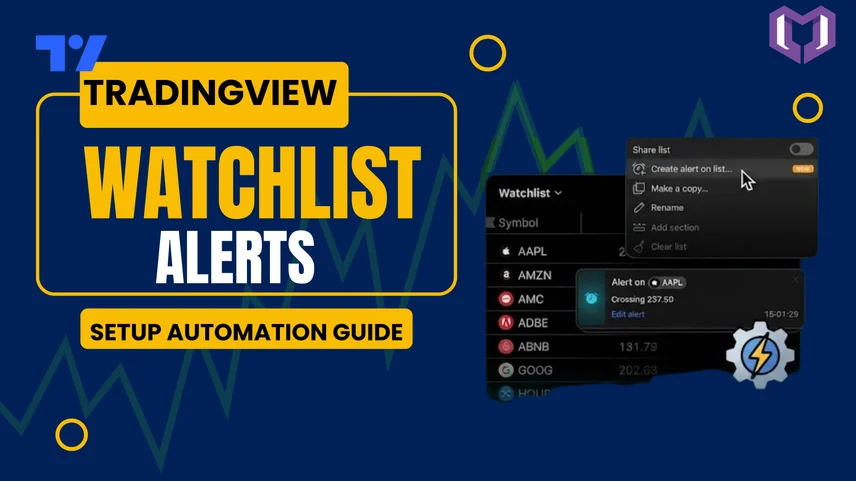
If you trade multiple stocks, forex pairs, cryptocurrencies, or commodities, checking every chart throughout the day can become difficult. That's where TradingView Watchlist Alerts make trading much easier. Instead of monitoring each symbol manually, TradingView can notify you whenever your selected market meets specific conditions.
The more advanced users can have the alert automatically sent to their MetaTrader 4 (MT4) or MetaTrader 5 (MT5) software through MetaConnector, minimising human intervention while executing the trades.
This article is going to cover all aspects of the TradingView Watchlist Alerts, including its features, history, implementation procedure, and automation of trades through MetaConnector.
At first, TradingView was a cloud-based charting tool that offered technical analysis features to traders across the globe. At this stage, traders were able to set up alerts for each individual chart alone.
As TradingView progressed, it came up with watchlists, where users could group various securities together. Soon after, it launched Watchlist Alerts, which enabled users to monitor more than one security at a time. This became even easier with the use of Premium plans, whereby users could set up one alert to search the entire watchlist.
Currently, TradingView Alerts are used by retail traders, professional traders, and even algorithms. by retail traders, professional traders, and even algorithms.
TradingView Watchlist Alerts are notifications that trigger whenever a stock, forex pair, cryptocurrency, or any other asset in your watchlist satisfies a predefined condition.
Instead of opening every chart repeatedly, you receive instant notifications through the following:
This feature saves time and helps traders react quickly to changing market conditions.
Setting an alert for one symbol is easy.
Here are the instructions:
Now TradingView will automatically notify you whenever the condition is met.
With Premium, Expert, and Ultimate TradingView subscriptions, you can use just one alert to check all symbols in a watchlist.
Here's how:
This tool is particularly helpful for traders dealing with many assets.
Using TradingView's set alert for a watchlist offers several advantages.
There is no longer a need for switching between various charts during the trading session. This is because TradingView keeps scanning your watchlist and alerts you once your trading conditions are met.
Benefits include:
Receiving alerts is helpful, but manually placing trades can still cause delays.
This is where MetaConnector becomes valuable.
MetaConnector provides a direct connection between TradingView webhook alerts and MetaTrader 4 and Meta Trader 5 platforms. Thus, alerts turn into trading signals automatically.
When your TradingView alert is triggered, MetaConnector can
This makes it ideal for traders using automated strategies or TradingView indicators.
This makes it ideal for traders using automated strategies or TradingView indicators.
To get the best results, create alerts only for meaningful trading opportunities instead of every small price movement. Regularly update your watchlist, remove inactive assets, and review your alert conditions based on changing market trends. If you automate trading through MetaConnector, always test your strategy on a demo account before using it in live markets.
TradingView Watchlist Alerts allow traders to watch many markets at once without the need for checking graphs regularly. Whether you are trading in stocks, forex, cryptocurrency, or commodities, the alerts increase efficiency and minimise the risk of missing critical trading opportunities.
In case you want to fully automate your trading, there is MetaConnector that connects TradingView with MT4 and MT5. The use of webhooks triggers trades based on alerts on the TradingView platform.
1. How do you set an alert on the TradingView watchlist?
Open the Watchlist panel, right-click the symbol, choose 'Create Alert', choose your condition, set up notification and click 'Create'. Premium users may also create one alert for the whole watchlist.
2. What are Watchlist Alerts?
Watchlist Alerts are TradingView notifications that monitor one or multiple assets in your watchlist and alert you whenever predefined price or indicator conditions are met.
3. How many Watchlist Alerts does TradingView have?
The number depends on your subscription
4. What happens if I edit my watchlist later?
If you add new symbols to your watchlist, the existing watchlist alert automatically includes them. If you remove a symbol, alerts for that specific asset are automatically disabled.
5. Why isn't my TradingView Watchlist Alert triggering?
Triggers will only be activated if the conditions selected are matched by the data feed in the chart. For instance, if the chart is set up not to display after-hours data, operates at a different time frame, or the trigger conditions have not been satisfied, then the alerts will not go off.